SuperSeller Blog
How to Add an AI Chatbot to WordPress Without WooCommerce
A WordPress site does not need a product catalog to answer visitor questions. Set up the plugin, choose the pages it can use, and test the answers before switching on chat.
You can add an AI chatbot to a WordPress site without turning it into a store. SuperSeller's WordPress plugin lets you choose published pages, posts and your own FAQ answers, then show an optional chat widget. WooCommerce is only needed if you want product catalog features.
This walkthrough uses the released plugin's WordPress admin screens. The screenshots show a fresh temporary installation, without a connected company or visitor conversations. They show where to set things up, not a claim that answers or sales have already improved.
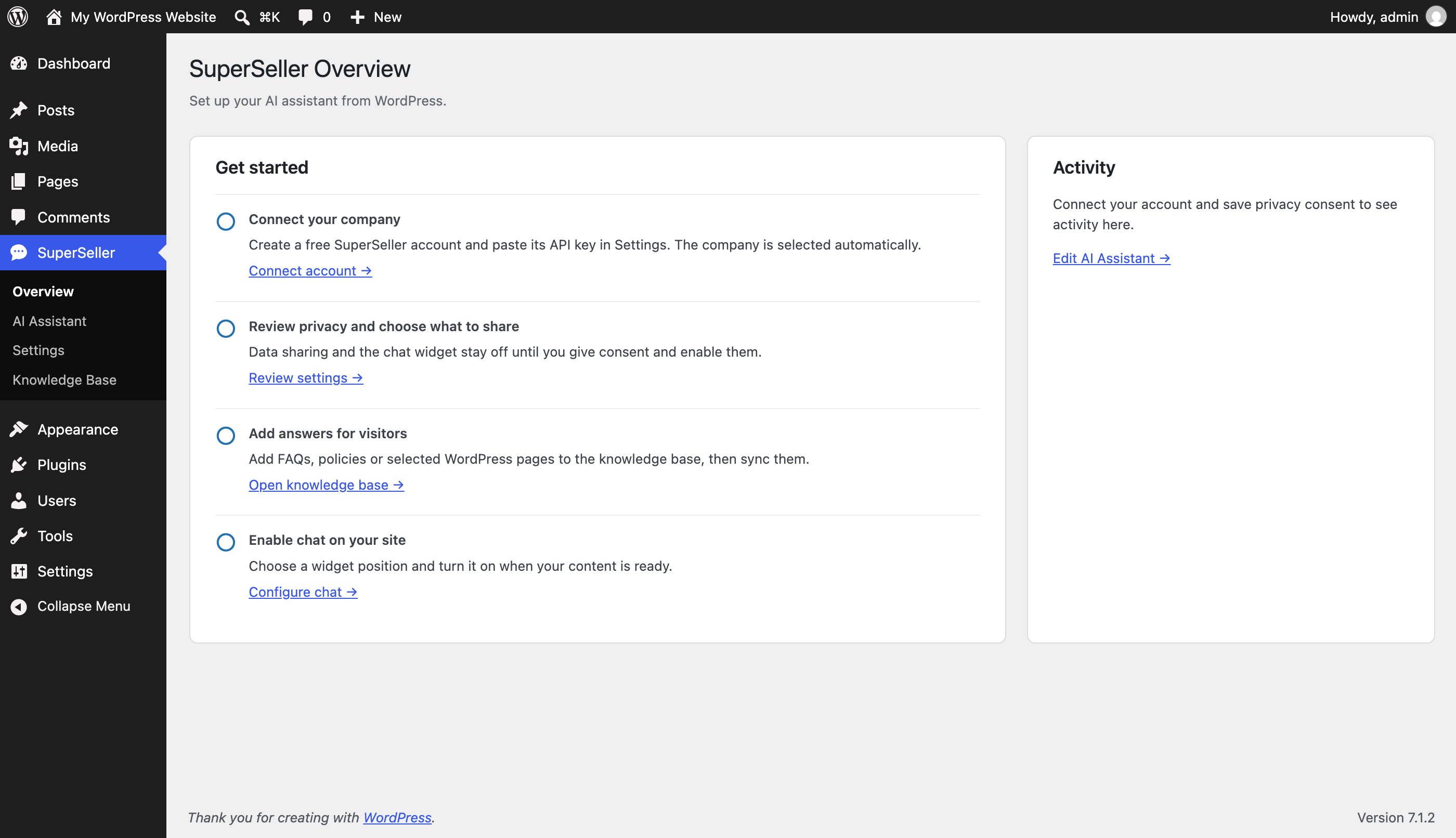
Install the WordPress AI chatbot plugin
Open SuperSeller in the WordPress Plugin Directory. In your WordPress admin, go to Plugins → Add New, find the plugin, then choose Install Now and Activate. WordPress also lets you download the ZIP from the directory and upload it through the same screen. Its plugin installation guide covers both methods.
After activation, open SuperSeller → Overview. Its four steps point you to Settings, Knowledge Base and the chat controls. A regular WordPress site can use these screens without WooCommerce installed.
Connect a company and review privacy first
Create a SuperSeller account and a company for this site. The Free plan includes 30 conversations per month for one company, with no card. In the dashboard, select that company, open API Keys and generate a key. Copy it when shown; keep it out of public pages and support posts.
Back in WordPress, open SuperSeller → Settings. Paste the key and use Test Connection to confirm the company. Read the privacy information before saving consent. The plugin keeps data sharing and the chat widget off until you choose to enable them. If your site needs a visitor consent flow or a privacy notice, configure it before publishing the widget.
Choose the pages and answers the assistant may use
Open SuperSeller → Knowledge Base. Select the published WordPress pages or posts you want to share, such as a current FAQ, service details or returns policy. You can also write a custom knowledge entry for a question your pages do not answer clearly. Review each selection before syncing it; the plugin does not automatically send every page on your site.
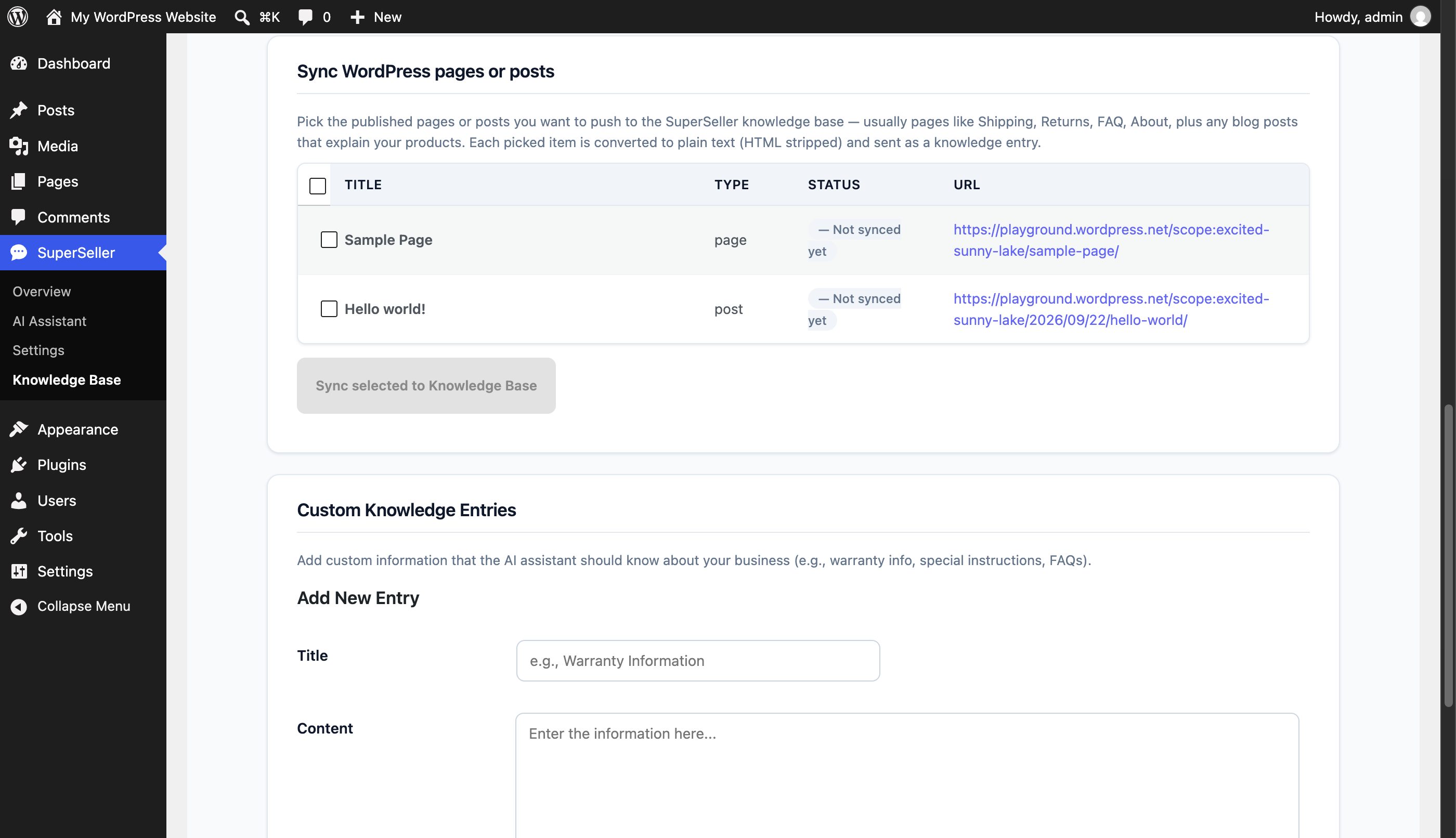
Start small. I would prepare three questions visitors already ask, find the page or answer that supports each one, and sync those sources. When you change a source page, review it and sync it again so the assistant uses the updated text. The sync controls stay unavailable until a valid connection and privacy consent are saved.
Edit the chat and test it before launch
With a connected company and saved consent, SuperSeller → AI Assistant lets you change the widget title, subtitle, greeting, message placeholder, tone, two colors and support email. Other assistant settings remain in the SuperSeller dashboard. Then, in WordPress Settings, choose the widget position and enable the optional chat when your content is ready.
Before visitors see it, ask one question your selected pages answer directly, one that needs a custom FAQ, and one whose answer is absent. Compare the replies with the source text. If a response invents a policy or misses a condition, improve the source and retest. Check the widget on a phone, and keep an obvious way to reach a person for questions it cannot answer.
What changes if you use WooCommerce?
The same plugin can add WooCommerce product catalog sync when WooCommerce is active. Product names, prices, attributes and availability can then inform shopping answers. That feature has its own controls; order conversion tracking is a separate, default-off choice. A service site or publication can skip both. If you run a store, follow the WooCommerce setup path after finishing the company and privacy steps.
Common setup questions
Do I need WooCommerce to use the chat widget?
No. WordPress pages, posts, custom knowledge and the optional widget work without it. WooCommerce is required for product sync and conversion tracking.
Does installing the plugin make the chatbot appear immediately?
No. Connect a company, save privacy consent, prepare your knowledge, then turn on the widget in Settings. It starts off.
Does the plugin scan my whole site?
No. Select the published pages and posts you want to share, or add custom answers. This is a deliberate content choice.
Install the WordPress plugin, then use the WordPress integration guide as your setup checklist. The Free plan gives you 30 conversations a month to test with your own content.