SuperSeller Blog
Virtual Try-On from Store Chat with SuperSeller and TryOnExperience
Find a dress in chat, open its Try On button and preview the look on a photo. A practical guide to the tested SuperSeller and TryOnExperience flow.
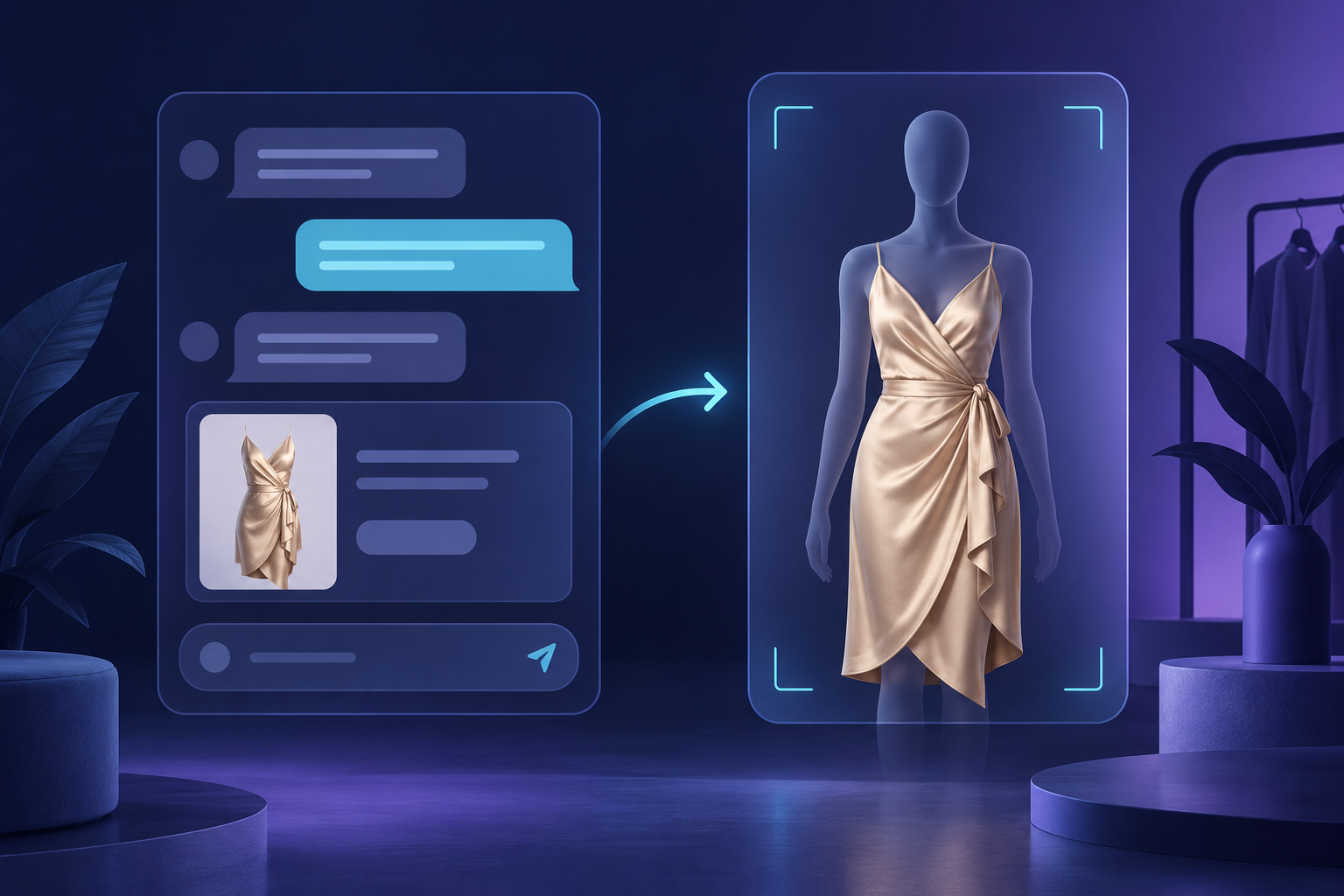
Virtual try-on gives a shopper a way to preview a piece of clothing on a photo of themselves. With SuperSeller and TryOnExperience, that journey can start with a product recommendation in your store chat. The shopper finds a dress, taps Try On, and opens the clothing preview tool with that dress already selected.
The shopper then adds their photo and starts generation. They do not need to download the catalog image and upload it again. SuperSeller handles product discovery and the handoff; TryOnExperience generates the visual preview. The preview opens in a new tab, so the shopper can return to the store to check the product details and continue shopping.
We tested this flow in our Fashion demo with an evening dress. This guide explains what the shopper sees, what the merchant needs to configure, and what a generated clothing image can reasonably tell someone before they buy.
Try the SuperSeller Fashion demo: ask for an evening dress, select Try On on the product card and follow the preview flow. Visit SuperSeller for the assistant or open TryOnExperience to test the clothing preview tool.
What is virtual try-on for an online clothing store?
A product photograph shows an item on its own or on the person chosen for a catalog shoot. A virtual try-on tool uses a shopper photo and a clothing image to generate another view: a visual approximation of that item on the shopper.
For someone comparing dresses, it gives them something specific to inspect. They can look at the color against their appearance, the overall outfit, and whether they like the idea enough to revisit the product page. It can be useful during browsing, before they have decided which item to order.
A generated image does not measure the person or physically test the garment. Keep the size chart, material description and return policy accessible. Those details still answer questions that a picture cannot settle, such as whether a fabric stretches or which measurements correspond to a size.
How SuperSeller and TryOnExperience work together
SuperSeller uses the connected product catalog to answer shopping questions and recommend items. On a module-enabled storefront, an eligible product card with an image can also show a Try On button. Selecting it opens TryOnExperience and passes the selected product image into the preview flow.
TryOnExperience receives the garment image. The shopper supplies the other input: their own photo. Once both inputs are ready, the shopper requests a generated preview. The result can then be inspected in the preview tool.
The distinction between those steps helps merchants explain the experience accurately. The assistant has found an item in the store. The preview tool has generated an image. The store's product page remains the place to confirm the price, available variant and purchase options.
A real dress example from the SuperSeller Fashion demo
In our Fashion demo store, we asked: "Show me an evening dress under $300." SuperSeller recommended Silk Evening Dress at $249.99. Its product card included the Try On button.
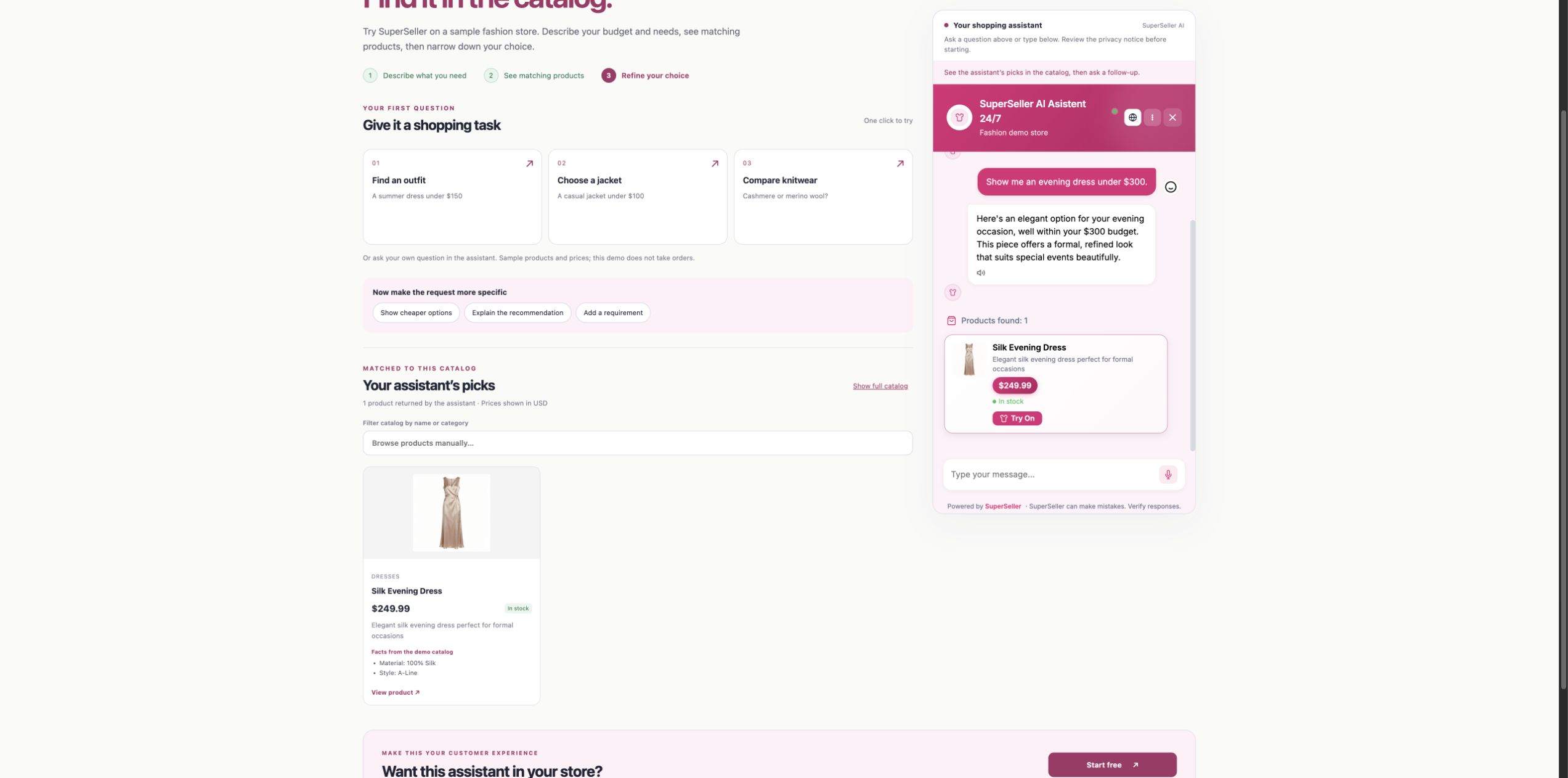
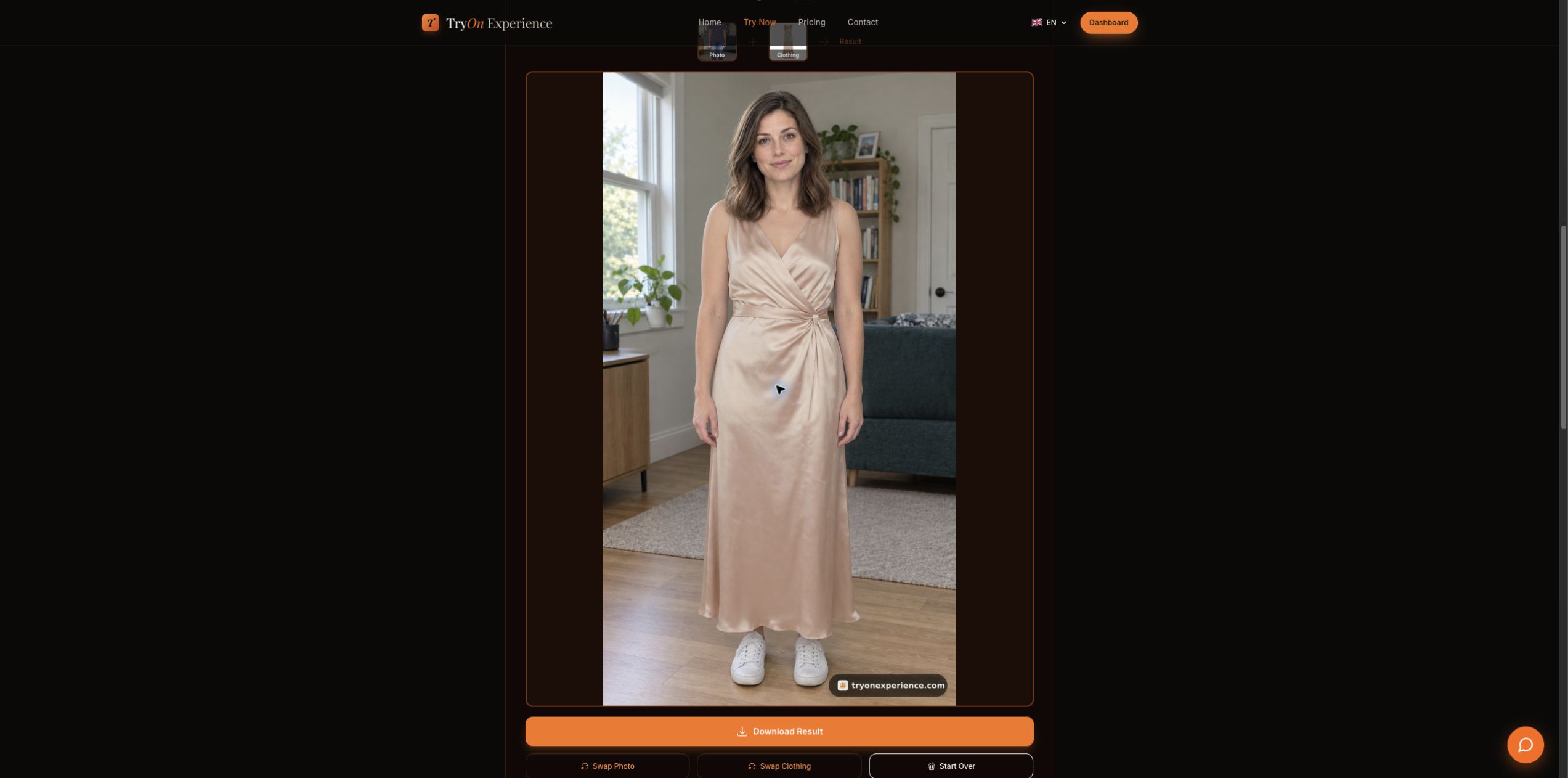
We selected that button and checked the new tab. TryOnExperience had the same dress image already loaded. We added a fictional adult source photo and generated a preview of the dress on that person.
This test confirmed the product image handoff and a completed preview for one dress. It was an owner-run demonstration. It does not establish results for every clothing category or show that a real merchant gained a sale.
You can watch the published demonstration to see the sequence. The edited video omits the generation wait. Starting the try-on journey is one click from the product card; the image itself still takes time to generate.
How a shopper can try clothing from the chat
- Open the store chat and describe the item you want. A request such as "an evening dress under $300" gives the assistant a category and a budget.
- Review the recommended product. Check that it is the item you want to preview, then select Try On on its card.
- In the new TryOnExperience tab, check the prefilled garment image. This is the item transferred from the store chat.
- Add a photo you have permission to use. Follow the upload instructions shown by the preview tool.
- Start generation and wait for the result. Review the generated outfit, then return to the store page for sizing, availability and checkout.
The handoff saves the shopper a repeated product-image upload. It also keeps the clothing choice connected to the item they found in chat. If they decide to preview a different item, they should check the selected garment image again rather than assume the tool has switched it.
What photos does the clothing preview need?
The flow uses a product image and a person photo. The product image comes from the recommended catalog card when the handoff succeeds. The shopper supplies the person photo in TryOnExperience.
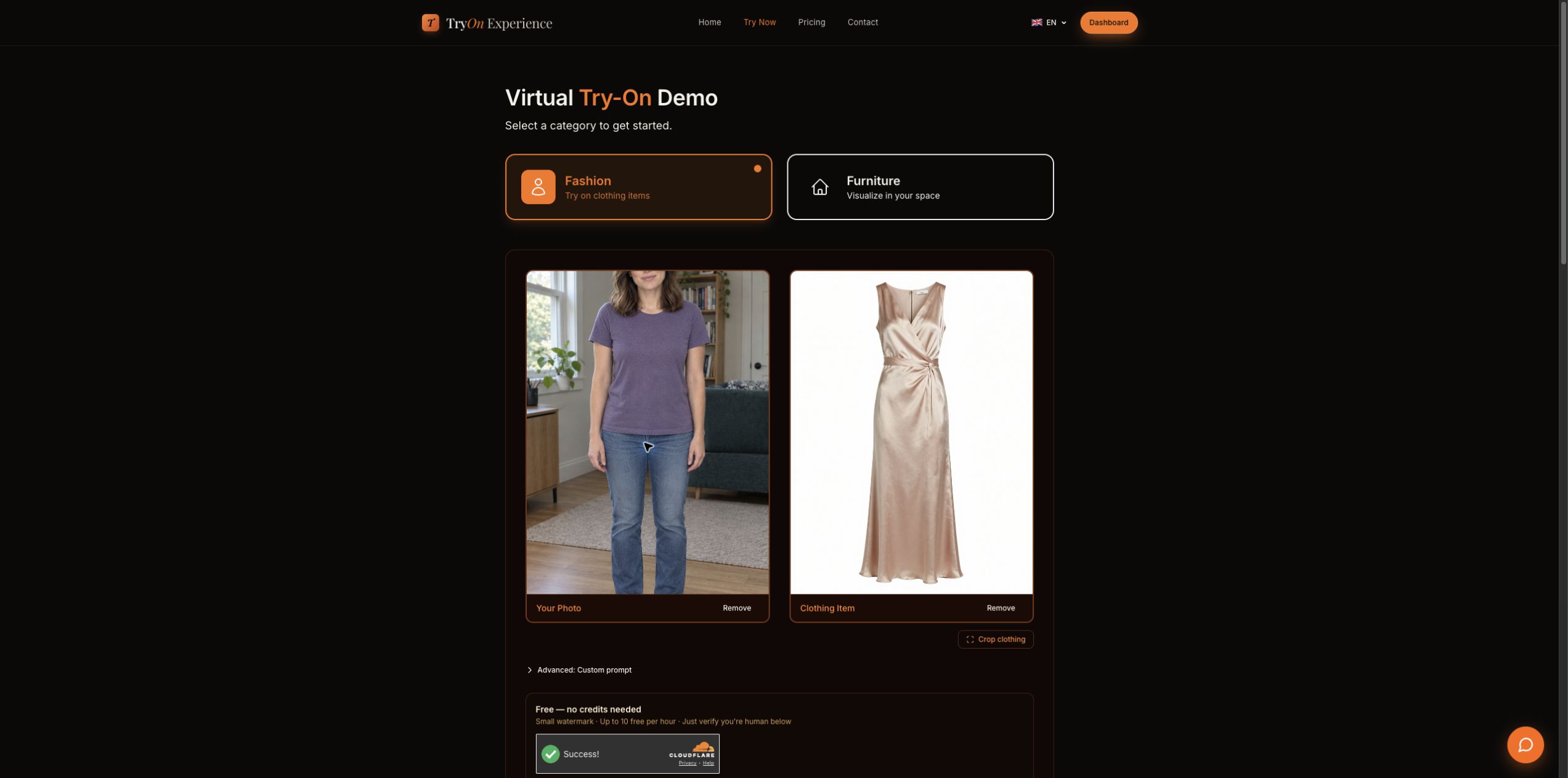
For a first test, use a clear product image that makes the garment easy to identify. A crowded collage or an image dominated by accessories gives the preview less useful information about the clothing. Follow the tool's current guidance for the person photo; avoid making promises that every pose, crop or lighting condition will work equally well.
Only use photos you are entitled to upload. Merchants should give shoppers a clear explanation that the photo will be processed by TryOnExperience and link to its current privacy policy. Customers should be able to browse and buy without being required to upload a personal photograph.
How to enable virtual try-on for your SuperSeller company
Start with a connected catalog and a working storefront widget. Check that the assistant can recommend the clothing products you intend to use and that the product cards contain the correct images and store links. For catalog setup, use the SuperSeller documentation.
In the SuperSeller dashboard, select the company that owns the storefront. Open Modules and enable Virtual Try-On for that company. The module carries the setting that makes the storefront widget expose the Try On action. Where the module's category setting is available, use the appropriate category for the catalog, such as fashion.
Company selection matters when you manage more than one store. Enabling a module for one company does not establish that another company's widget has the same configuration. Preview the exact storefront where shoppers will encounter the button.
Once enabled, ask the chat for a real item from your catalog. Select Try On, verify the new tab and product image, then complete one permitted-photo test. If your integration or administrative role does not expose the module setting, contact SuperSeller support before announcing the feature to shoppers. The demo proves the module-enabled widget flow; it is not a guarantee that every platform configuration has already been tested.
Check the full customer journey before launch
Test on a desktop and a phone. Product discovery, the button, the new tab and the photo upload are separate steps. A correct recommendation is not enough if the transferred image is wrong, and a generated preview is not enough if the shopper cannot find their way back to the product.
- Confirm that the chat recommends a product your store actually sells.
- Compare the product card image with the prefilled TryOnExperience image.
- Complete generation with a photo you are allowed to use.
- Check that the person can return to the store and open the same product page.
- Keep product information, sizing and the store's support options available throughout the journey.
If the button is absent, check the selected company, module state and whether the card has a usable image. If the preview tool opens without the expected garment, capture the steps and the affected product link for support. Do not ask a shopper to send their private photograph to a public support thread.
What can shoppers learn from an AI clothing preview?
They can inspect a generated version of the outfit and decide whether they want to keep exploring that item. A preview may help someone compare the visual direction of two dresses or see how a color reads alongside their own appearance.
Look closely at the garment details. Image generation can change a neckline, seam, print, fabric texture or body proportions. The catalog image is the reference for what the merchant is selling. If the preview changes a detail that affects a purchase decision, the shopper should rely on the product page and ask the store for clarification.
The same principle applies to fit. A convincing-looking dress in an image does not establish that the real dress will be comfortable, have the pictured length on that person, or match their measurements. Present it as a visual preview and keep the size-selection process grounded in the merchant's actual information.
How should a merchant judge whether the feature helps?
Start by asking whether shoppers can complete the journey and whether they find the preview useful. Record incorrect product transfers, failed generations and questions that the chat could not answer. These observations give you specific changes to make.
You can also track product recommendations, clicks into try-on and completed previews where your measurement setup supports those events. Count purchases separately. A shopper who tried an item and later bought it is an assisted purchase under a defined attribution rule; it does not by itself prove that try-on caused an additional sale.
We have not established a conversion increase or a reduction in returns from the sample-store demonstration. Merchants who want to measure those outcomes need real customer traffic, consistent event definitions and a comparison that accounts for other changes to their store.
What does the combined experience cost?
SuperSeller's current plans and conversation allowances apply to the assistant. TryOnExperience is a separate platform with its own current usage conditions. Check the limits and requirements displayed there before describing a merchant offer as unlimited or included in a SuperSeller subscription.
Our recorded TryOnExperience test completed one free generation. That observation does not guarantee unlimited use for every shopper or company. A store should confirm the current arrangement for its intended usage before promoting it widely.
Virtual try-on questions
Can customers try a dress directly from SuperSeller chat?
They can start from the Try On button on an eligible product card when Virtual Try-On is enabled for that company. The button opens TryOnExperience in a new tab with the selected product image. The customer adds their photo there and requests a generated preview.
Do customers need to upload the clothing image again?
Not when the product handoff has worked: the clothing image is prefilled. They should still check that the selected garment is correct before starting generation.
Is the preview ready immediately after clicking Try On?
No. The click opens the preview flow. The shopper supplies a photo, starts generation and waits for a result. Generation time varies; our short video cuts out that wait.
Does virtual try-on tell a customer which size to buy?
This demonstrated flow generates a visual preview. It does not establish measurements or a correct size. Customers should use the merchant's size chart and product guidance.
Can I use it for T-shirts and other clothing?
TryOnExperience provides a Fashion flow for clothing images. Our combined end-to-end test used a dress. Test the specific items and image formats you sell before advertising support for your whole catalog.
Where can I see the SuperSeller and TryOnExperience demo?
Open the SuperSeller Fashion demo or watch the recorded dress preview. To evaluate the product-recommendation side first, read our catalog recommendation test.
Give shoppers a path from finding clothing to previewing it. Create your SuperSeller account, connect the catalog and test Virtual Try-On on your storefront. Shopify merchants can start with the SuperSeller Shopify app. Open TryOnExperience to explore the clothing preview tool.