SuperSeller Blog
How to Fill the SuperSeller Knowledge Base with n8n Without Coding
Use n8n as a no-code bridge between your store content, Google Sheets, forms, CMS pages, or support docs and the SuperSeller knowledge base.
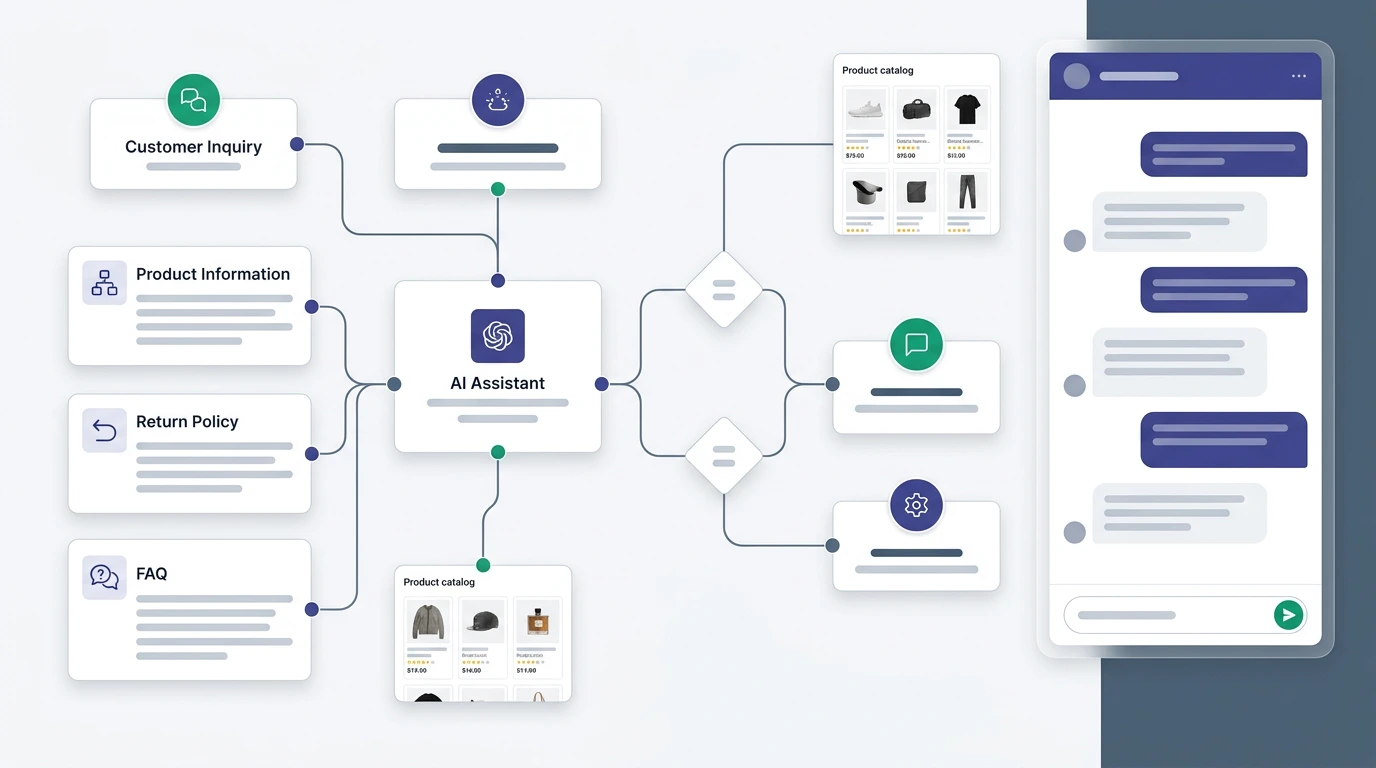
You do not need a developer to keep your SuperSeller knowledge base fresh. With n8n, you can build a no-code workflow that takes shipping policies, return rules, FAQ answers, Google Sheets rows, CMS pages, or form submissions and sends them directly into SuperSeller.
The goal is simple: every time your store policies or support content change, your AI assistant should learn it without someone copy-pasting text into the dashboard.
What this workflow does
The workflow takes content from a source, formats it into a clean knowledge base entry, then calls the SuperSeller API endpoint:
POST /api/v1/knowledgeSuperSeller then saves the entry to the knowledge base, generates embeddings, and syncs it to the search layer used by the chatbot.
What you need
- A SuperSeller account and company
- A SuperSeller API key from the dashboard
- An n8n workspace
- A content source: Google Sheets, Airtable, Notion, CMS export, form, webhook, or manual trigger
n8n's HTTP Request node is the easiest way to call the SuperSeller API. If you want external systems to push content into n8n, use the Webhook node. The Webhook node gives you a test URL while building and a production URL after activation.
The no-code workflow
Step 1: Choose a trigger
Pick one of these n8n triggers depending on how your content is managed:
- Manual Trigger: good for testing the first workflow
- Schedule Trigger: good for daily or hourly sync from a sheet or CMS
- Webhook node: good when another system sends new FAQ or policy content to n8n
- Google Sheets trigger: good when your support team maintains FAQ rows in a spreadsheet
Step 2: Pull or receive the content
Your source should provide at least three fields:
title- for example "Shipping to Germany"documentorcontent- the actual answer texturl- optional, but useful when the answer came from a page
If you use Google Sheets, create columns like this:
id | title | document | url | updated_atThe id column is important. Keep it stable, for example shipping-germany. Stable IDs let SuperSeller update the same knowledge entry instead of creating duplicates every time the workflow runs.
Step 3: Clean the text
Use n8n's Set/Edit Fields node to map your source fields into the SuperSeller format:
{
  "id": "shipping-germany",
  "title": "Shipping to Germany",
  "document": "We ship to Germany in 2-5 business days. Orders over 80 EUR include free delivery.",
  "url": "https://yourstore.com/shipping"
}
Keep each entry focused. One policy per knowledge base item is better than one giant document containing every policy. The chatbot retrieves more precise context when each entry has a clear title and focused answer.
Step 4: Send it to SuperSeller with HTTP Request node
Add an HTTP Request node and configure it like this:
- Method: POST
- URL:
https://superseller.online/api/v1/knowledge - Authentication: send your API key in the
X-API-Keyheader - Content-Type:
application/json - Body: JSON from the Set/Edit Fields step
Headers:
X-API-Key: sk_live_your_key_here
Content-Type: application/json
Body:
{
  "id": "{{$json.id}}",
  "title": "{{$json.title}}",
  "document": "{{$json.document}}",
  "url": "{{$json.url}}"
}
SuperSeller accepts document or content. Use document if you are starting fresh.
Step 5: Test with one row first
Run the workflow with one knowledge item. A successful response should confirm that the entry was created. Then open the SuperSeller dashboard and check the knowledge base list. After that, ask the chatbot a question that should use the new entry.
Recommended n8n workflow patterns
Google Sheets to SuperSeller
- Schedule Trigger once per day
- Google Sheets node: read rows from your FAQ/policies sheet
- Filter node: only rows where
status = published - Set/Edit Fields node: map fields to
id,title,document,url - HTTP Request node: POST each item to SuperSeller
Form submissions to SuperSeller
- Webhook node receives a support team's new FAQ submission
- Set/Edit Fields node formats the entry
- Optional approval step in Slack or email
- HTTP Request node sends approved content to SuperSeller
CMS pages to SuperSeller
- Schedule Trigger runs every night
- HTTP Request node fetches selected CMS pages
- HTML Extract or text cleanup step removes navigation and footer text
- Set/Edit Fields creates focused title and document fields
- HTTP Request node upserts the entry into SuperSeller
Best practices for better chatbot answers
- Use stable IDs. Update old entries instead of creating duplicates.
- Keep entries specific. "Return policy for damaged products" is better than "All policies".
- Write titles like customer questions. This helps retrieval and dashboard browsing.
- Include source URLs. Your team can trace where the answer came from.
- Sync only approved content. Do not push draft policies into the chatbot.
What to sync first
Do not start with every page on your site. Start with the content that changes support workload or sales confidence. A practical first batch is usually 20-40 focused entries:
- Shipping times by country or region
- Return policy, refund rules, and damaged item process
- Warranty terms and product care instructions
- Size charts, compatibility rules, and fit notes
- Payment methods, invoices, tax, and business orders
- Top product questions from email, WhatsApp, live chat, or reviews
This gives the chatbot useful context without filling the knowledge base with low-value pages like generic category introductions, cookie policy text, or old campaign pages.
Validation checklist before turning the workflow on
Before you schedule the workflow, run it manually with one item and check the full loop:
- The item appears in the SuperSeller knowledge base with the right title
- The document text is clean and does not include menus, footers, or tracking copy
- The same workflow run updates the item instead of creating a duplicate
- The chatbot can answer a direct customer question using that entry
- Your source has a simple approval field, such as
status = published
Related SuperSeller docs
- n8n knowledge base workflow
- Knowledge Base API reference
- API key setup guide
- Widget installation guide
Common mistakes
Sending one huge document
Large mixed documents make retrieval weaker. Split content into focused entries: shipping, returns, warranty, payment, sizing, delivery countries, and product care.
Using random IDs
If every run creates a new random ID, your knowledge base will fill with duplicates. Use IDs based on the source page slug or spreadsheet row key.
Syncing unreviewed AI text
n8n can generate summaries with AI, but do not publish them directly into your customer-facing knowledge base without review. Bad policy text creates bad chatbot answers.
Final workflow map
Trigger
  -> Read source content
  -> Filter approved/published rows
  -> Map title/document/url/id
  -> POST /api/v1/knowledge
  -> Check SuperSeller dashboard
  -> Test chatbot answer
Next step: create a SuperSeller API key, make one test row in Google Sheets, and send it through n8n's HTTP Request node to POST /api/v1/knowledge. Use the API key setup guide if you need the dashboard path.
Related reading
- AI Chatbot for E-commerce: The Complete Guide (2026) — the full picture: features, pricing models, and rollout.